Adding a Recording Profile
The procedure below describes how to add a Recording Profile. The Admin can configure which call types are recorded based on call direction. Calls are categorized as queued (routed to the agent through a call queue, also known as a Worker Queue) or non-queued (direct calls to the agent via the Worker App).
Calls received through Microsoft Teams are not recorded.
|
➢
|
To add a Recording Profile: |
|
1.
|
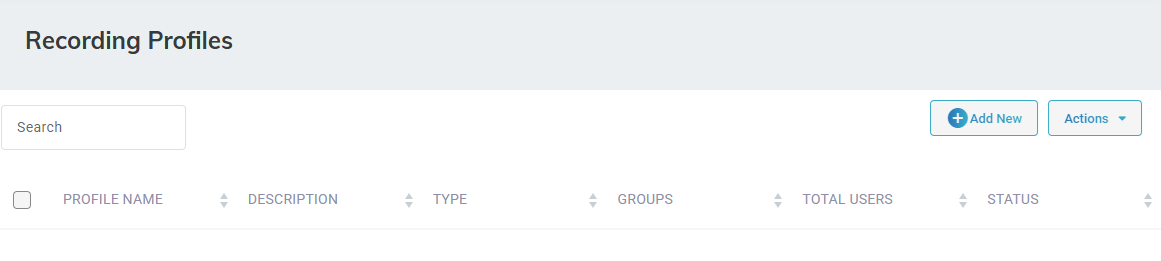
Open the Recording Profiles page (Configuration > Routing > Recording Profiles). |
|
3.
|
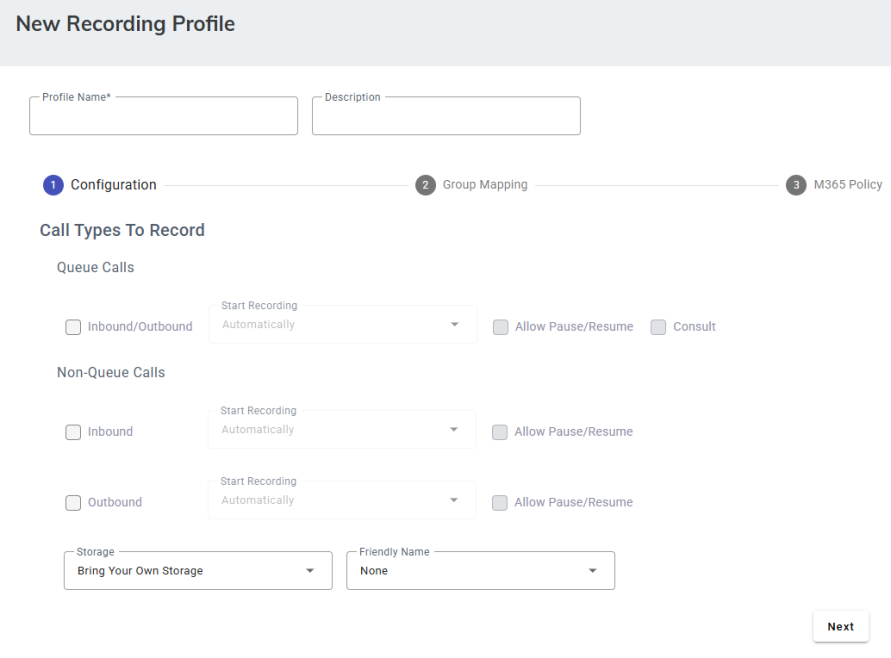
In the 'Name' field, enter the name of the recording profile. |
|
4.
|
Under 'Call Types to Record', under 'Queue Calls', |
|
a.
|
Select Inbound/Outbound. |
|
b.
|
Choose whether recording will start Manually or Automatically. |
|
c.
|
If you selected automatic recording, select Allow Pause/Resume to allow agents to pause or resume for compliance purposes. If you selected manual recording, Allow Pause/Resume is enabled by default and cannot be changed. |
|
d.
|
(Optional) Select Consult if you want to record consultation calls (when an agent consults another agent or supervisor). |
|
5.
|
Under 'Call Types to Record', under 'Non-Queue Calls', configure recording settings separately for inbound and outbound non-queued calls. |
|
b.
|
Choose whether recording will start Manually or Automatically. |
|
c.
|
If you selected automatic recording, select Allow Pause/Resume to allow agents to pause or resume for compliance purposes. If you selected manual recording, Allow Pause/Resume is enabled by default and cannot be changed. |
|
6.
|
Configure storage type. Choose between Voca storage or your own storage. The list is populated from System Settings. If no external storage is defined, only Voca storage will be available. |

|
7.
|
Select Bring Your Own Storage or Use Voca Storage. |
|
8.
|
If you selected Bring Your Own Storage, give your storage a name. |

|
9.
|
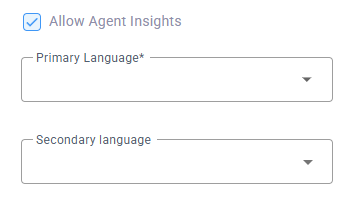
Select Allow Agent Insights. |
This option (and related settings) is visible only if the tenant has the Agent Insight add-on.
|
10.
|
From 'Primary Language', select the main language for AI processing. This language will be used to create transcripts, summaries, and sentiment analysis. You need to set it manually (auto-detection is not supported). Agents can change the primary language during a call if needed. |
|
11.
|
From 'Secondary Language', select additional languages the agent can switch to during a call. Agents can choose from 14 supported languages (e.g., Spanish, Mexican Spanish, French). |

|
13.
|
In the Group Mapping section, under 'Assign Groups', Select at least one AAD group. The security groups is automatically populated after synchronization is completed in the Call Recording System Settings tab that was configured earlier.
|
|
15.
|
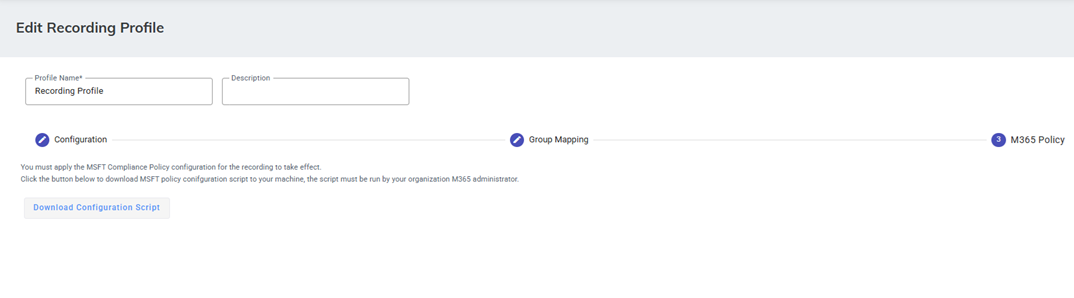
In the M365 Policy section, click Download Configuration Steps. Admins need to download and run the PowerShell script in the Azure environment to enable these settings. Once completed, the Recording Profile status will change to ‘Success’. This is a mandatory step. |